


How to Organize a Schedule in OneNote
For keeping track of what you plan to accomplish on a day to day basis, nothing beats a good old notebook. Specifically: a Microsoft OneNote notebook :)
There are several good agenda related programs available. Including Outlook, Sunbird, or even Google Calendar. These are especially good at reminding you of important dates for such things as upcoming meetings, events, or deadlines. Where they are lacking however, is in the context of your daily schedule.
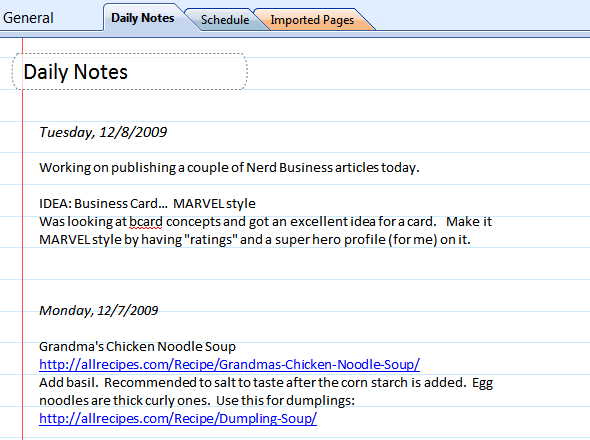
Above: screenshot of my daily notes from OneNote
OneNote is an efficient solution for keeping notes on just about anything. Particularly useful for projects, clients, and daily notes. And the big advantage over the traditional pen & paper notebook is the built in search feature.
If you're like me and you use OneNote to take notes every day, it's logical to use it as a daily scheduler too. To do this, create a new section specifically for your daily schedule. Here's how I set up mine.
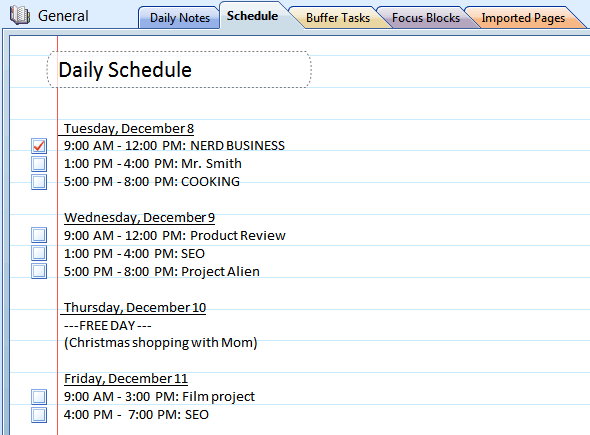
Above: screenshot of my daily notes from OneNote
Based on my Time Management Strategy posted last week - each day is divided into 3, 6, or 9 hour 'Focus Blocks' that are planned in advance. I generally project out about 9 days like this.
Each 'Focus Block' of the day is denoted with a checkbox that I can later check off after completion. It's a nice way to keep on top of things - and to later remind yourself about forward progress.
You won't notice any checklist of tasks on this page. Focus Blocks are intended for focus on just one particular task, project, or client (or anywhere in your life you you want progress). So I organize my "To Dos" in a different way. A separate page, called 'Buffer Tasks' exists for the purpose of keeping track of the little, yet important, things.
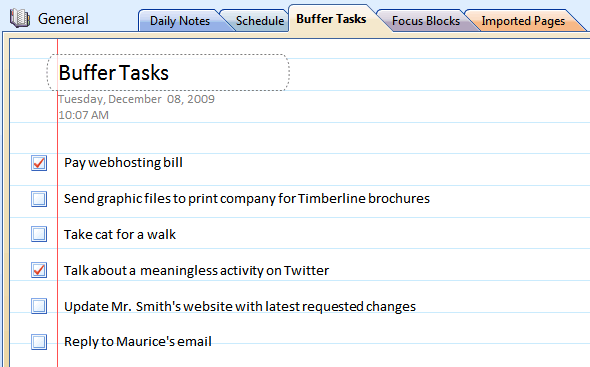
Above: create a separate section for Buffer Tasks outside the realm of your daily schedule
Having your schedule, tasks, and projects planned out in a basic OneNote notebook is better than the old pen & paper method, and certainly better than any other software method I have tried. With OneNote you have quick access to editing (I generally have OneNote open all the time anyway), you can sync this notebook with Office Mobile on your phone, and your daily schedule can co-exist with all of your other important notes; enabling you to become more strategic in your time planning.


